Using Content Blocks
Build store pages in Niblr's page builder — add content blocks, edit their words and styling in the inspector, and watch your real storefront update beside you as you work.
Every page's layout is built from content blocks — ready-made sections you stack, fill in and restyle. You build them in the page builder, which shows your real storefront in the middle of the screen and updates it as you edit. It's how you build a home page, an About page, or a campaign landing page without touching code.
Open the builder
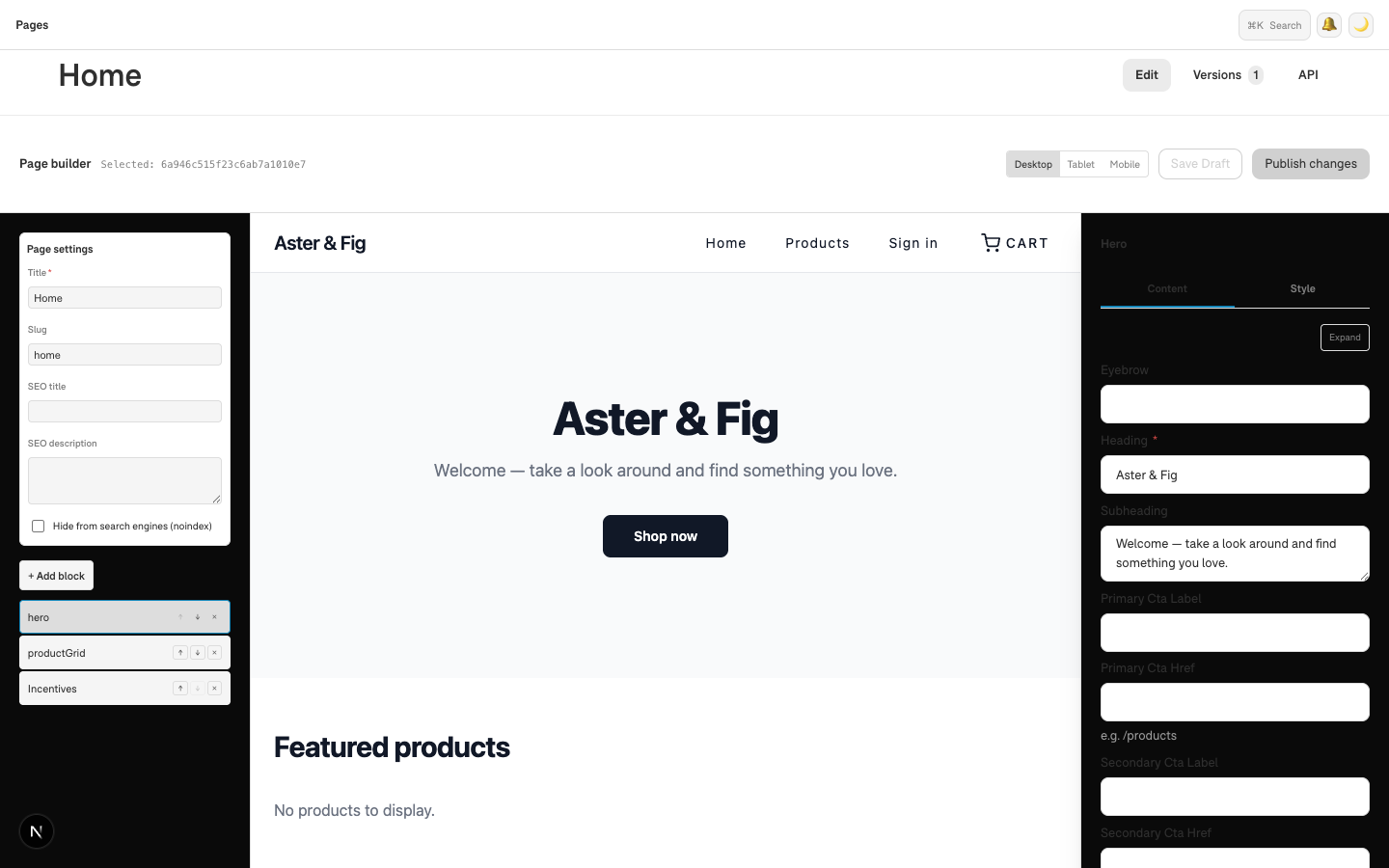
In the admin, open Pages in the sidebar and click the page you want to work on. The builder opens in three panes:
- Left — Page settings (title, address, SEO) and the outline of every section on the page, top to bottom.
- Middle — your storefront, exactly as a shopper sees it.
- Right — the inspector, where the selected section is edited.
Add a section
Click + Add block at the top of the left pane. The library opens grouped the way you'd look for things — Heroes, Commerce, Content, Social proof, Media & capture and Utility.

Click a block and it lands directly below the section you have selected. With nothing selected, it goes to the bottom of the page. A block showing a padlock needs a higher plan — it reads Upgrade required and cannot be added until you move up a tier.
Pick the section you want to edit
Click the section in the preview itself, or click its row in the left-hand outline. Either way it becomes the selected section and the inspector on the right fills in.
Write the words
The inspector opens on the Content tab, which holds that section's own fields — a Hero's heading, subtext and button; a Product Grid's chosen products; a Rich Text block's editor. Changes are kept as you type.
For a section with a lot to fill in, Expand opens the same fields in a full-width window.
Change how it looks
The Style tab carries the section's appearance:
- Scheme — the colour band it sits on.
- Variant — the arrangement, where the section offers more than one. A Hero can be centred, split, overlay or stacked; video and showcase need Growth.
- Layout — height, alignment, which side the picture sits on, and overlay, for the sections that use them.
- Presets — heading size and weight, accent colour, media shape, spacing and the rest, chosen from a set of tasteful options rather than typed as CSS.
The preview updates as you choose, without reloading. Not every control applies to every section: where a section's design doesn't use one, changing it has no visible effect. For a handful of sections — spacers, custom sections and the two older split and media heroes — the tab says styling isn't available yet.
You can set these for one section on one page here, or store-wide for every section of that kind, on every plan including Free. To go further than the presets reach, see custom CSS on Premium.
Reorder and remove
Each row in the outline carries three controls: ↑ and ↓ move the section up and down the page, and × removes it. Reordering is done with those arrows — sections can't be dragged yet.
Publish
Use Save Draft in the top bar to keep working without touching your live store, or Publish changes to make the page live. A page you have never saved shows Save this page to see a live preview in the middle pane — save it once and the preview appears.
The Desktop / Tablet / Mobile buttons in the top bar are not connected yet; the preview is always desktop-width for now. To check a page on a phone, publish it and open your store on one.
Tip: an FAQ block does double duty — its questions are also published as structured data, which helps the page show up in search and AI answers.
Start from create custom pages if you haven't made a page yet.