Create Custom Pages
Build custom pages for your Niblr store — an About page, a lookbook, a landing page — in the page builder. Set the title, address and SEO, stack content blocks, save as a draft or publish live.
Beyond your product catalog, you can build custom pages — an About page, a size guide, a campaign landing page — from reusable content blocks. No code.
In the admin, open Pages in the sidebar and click Create New. The page builder opens.
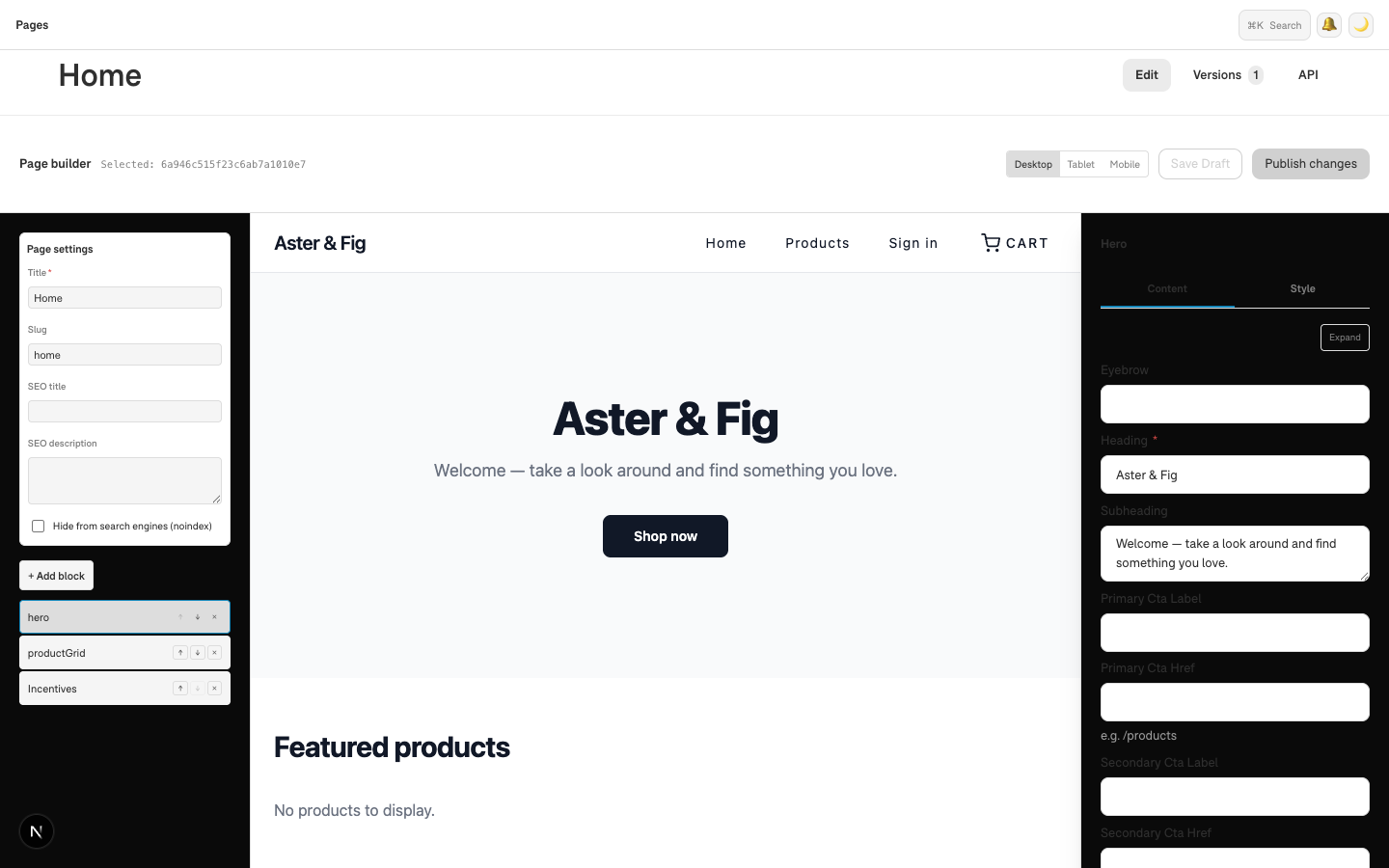
Name the page
Page settings, at the top of the left-hand pane, holds everything about the page itself:
- Title (required) — the page's name. Save and Publish stay blocked until it's filled in.
- Slug — the address it lives at, relative to your store.
aboutpublishes toyour-store.niblr.store/about. It must be URL-safe and unique within your store, and a few names are kept for your store's own pages —products,cart,checkoutandaccountamong them. - SEO title and SEO description — what search engines and social cards show.
- Hide from search engines — keeps the page out of search results while it's still live.
A page's social image, canonical URL and answer-engine summary are not editable in the builder yet.
Build the page
The middle pane is your storefront and the left pane lists the sections on the page. Click + Add block to open the library and start stacking — see using content blocks for the full walkthrough.
Draft vs publish
Pages support drafts:
- Save Draft keeps your work private — nothing changes on your live store.
- Publish changes makes the page (and any edits) live.
So you can build a page over several sittings and only publish when it's ready. Published pages are added to your store's sitemap automatically.
Next: using content blocks to fill the page.